How to Connect MT4 and MT5 to a Trading Journal (2026)
How to Connect MT4 and MT5 to a Trading Journal (2026)
Connect your MetaTrader 4 or MetaTrader 5 account to TradeZella using auto-sync or file upload. Step-by-step setup for both methods, plus the analytics you unlock once connected.
class SampleComponent extends React.Component {
  // using the experimental public class field syntax below. We can also attach
  // the contextType to the current class
  static contextType = ColorContext;
  render() {
    return <Button color={this.color} />
  }
}
Last Updated: March 31, 2026
MT4 and MT5 are the most widely used trading platforms in the world. Whether you're trading forex, commodities, or indices, the platforms handle order execution well. But they have one critical blind spot: analytics.
MetaTrader shows you entry price, exit price, and profit or loss. It does not show you which currency pairs are actually profitable, which session times you perform best in, or whether your setups have positive expectancy over 50+ trades. That is the gap a trading journal fills.
TradeZella connects directly to your MT4 or MT5 account using your investor password. No FTP configuration, no Expert Advisors, no scripts to install. Enter your credentials, click connect, and your trade history syncs automatically. This guide walks you through both methods: auto-sync (recommended) and HTML file upload (manual fallback).
Why Do MT4 and MT5 Traders Need a Trading Journal?
Your MetaTrader platform shows you what happened. A trading journal shows you why.
MetaTrader gives you the basics: entry price, exit price, profit or loss. That's it. It doesn't tell you anything about how your decisions compound over time.
A trading journal answers the questions MetaTrader cannot:
Which currency pairs are you actually profitable on?
Does your performance vary by session (London open, New York open, Asian session)?
Are you better with trending setups or range-bound setups?
What's your largest unrecovered drawdown?
What is your win rate by setup type, and is it improving month over month?
Without this data, you're flying blind. You're making the same mistakes every month because you have no system to catch them. A journal is the feedback loop that closes that gap. If you are a forex scalper taking 15-30 trades per day or a swing trader holding positions for days, the journal is where you find out which specific behavior is costing you money.
Method 1: Auto-Sync With Your Investor Password (Recommended)
This is the recommended method. Once connected, your trades sync automatically with no manual work required. You can monitor your sync status on the Add Trade page at any time.
What You Need Before Starting
Your MetaTrader account number (the 6-10 digit login number, not your email).
Your investor password. This is a read-only password that is separate from your main trading password. It allows TradeZella to read your trade data without being able to place trades, modify orders, or withdraw funds. If you cannot find your investor password, you can also try your regular password.
Your server name provided by your broker or prop firm (e.g., "ICMarkets-Live01" or "FTMO-Server").
WHERE TO FIND YOUR INVESTOR PASSWORD
Option 1: Open MetaTrader, click the "Mailbox" tab at the bottom. Your investor password was sent to you when the account was created.
Option 2: Check the welcome email from your broker or prop firm. The investor password is usually listed alongside your main credentials.
Option 3: In MT4, go to Tools → Options → Server tab. You can change your investor password here if you never received one.
Step-by-Step: Connect MT4 or MT5 to TradeZella
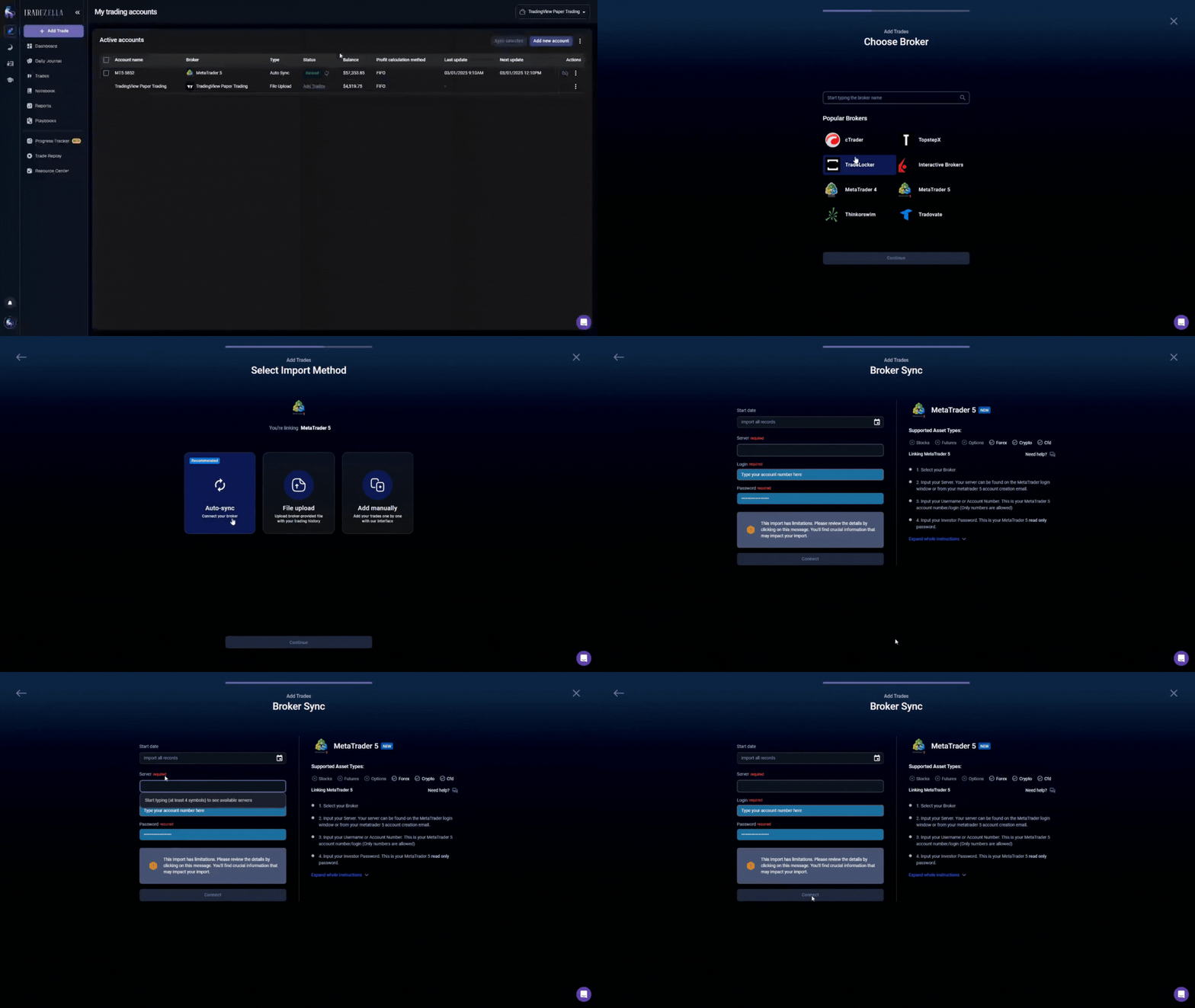
Log into TradeZella and go to the "Add Trade" page (or hover over the sidebar and click "Add Trade," then select "Broker Sync").
Click "Add New Account."
Select "MetaTrader4" or "MetaTrader5" from the list of available brokers.
Choose "Auto Sync" as the import method and click "Continue."
Start date: Leave blank to import all available records, or select a custom start date if you only want trades from a specific period.
Select the broker/company name associated with your MT4/MT5 account.
Enter the server name provided by your broker or prop firm.
Enter your MetaTrader login (the 6-10 digit account number).
Enter your investor password.
Select which TradeZella account to sync with, or leave it as "Create New Account" to have TradeZella create one automatically.
Click "Connect" and agree to the terms and conditions
That's it. TradeZella pulls your full trade history and starts syncing new trades automatically. The first sync may take a few minutes depending on how many trades are in your account history.
What Happens After You Connect
Once connected, TradeZella automatically:
Pulls your complete trade history (all closed trades).
Syncs open trades so you can see live positions.
Captures swap amounts, commissions, and fees from your broker.
Pre-fills stop loss and take profit values based on your MT4/MT5 order settings.
Re-syncs automatically on an ongoing basis. You can monitor sync status on the Add Trade page.
TradeZella Dashboard
You can connect multiple MT4/MT5 accounts on a single TradeZella subscription. If you trade on both MT4 and MT5, or across multiple brokers or prop firm accounts, all your data consolidates into one analytics view. Use the account filter in the top right corner to switch between accounts.
Method 2: File Upload From MetaTrader (Manual)
If you prefer not to use auto-sync, or if your broker is not yet in the auto-sync list, you can manually export your trade history from MetaTrader and upload it to TradeZella. This takes about 2 minutes.
Press Ctrl+T to open the Terminal window if it is not visible.
Click the Account History tab at the bottom of the Terminal panel.
Right-click anywhere in the Account History window.
Select the date range: "All History" to get everything, or choose "Last 3 Months," "Last Month," or a custom date range.
Right-click again and select "Save as Report."
Save the file to your desktop. It saves as an HTML file (not CSV).
IMPORTANT: HTML, NOT CSV
MetaTrader's "Save as Report" exports an HTML file. This is the correct format for TradeZella. Do not try to convert it to CSV or change the file extension. Upload the HTML file directly.
Click Toolbox at the bottom (or press Ctrl+T, or go to View → Toolbox).
Open the Account History tab.
Select the date range for the trades you want to export (right-click and choose the time period).
Right-click and select "Save as Report."
Save as HTML to your desktop.
Step 2: Upload to TradeZella
In TradeZella, go to "Add Trade" and click "Add New Account."
Select "MT4 MetaTrader 4" or "MT5 MetaTrader 5" from the broker list.
Choose "File Upload" as the import method.
Upload the HTML file you saved from MetaTrader.
TradeZella auto-maps all the fields. No manual column mapping needed.
Click Import.
Your trades appear in your journal immediately. TradeZella reads the HTML report and extracts all trade data including timestamps, currency pairs, entry/exit prices, lot sizes, swap, commissions, and profit/loss.
LANGUAGE NOTE: The MetaTrader report must be exported in English. If your MetaTrader is set to another language, change the language to English before exporting (go to View → Languages → English in MetaTrader).
Step 3: Verify Your Data
After import, spot-check a few trades to make sure they came through correctly:
Number of trades matches your MetaTrader history.
Currency pairs are correct.
Entry and exit times are accurate.
Profit/loss amounts match.
TradeZella Dashboard
Once verified, your trades immediately populate TradeZella's analytics dashboard. You will see your win rate, average R-multiple, performance by pair, and time-of-day breakdown without any extra setup.
What Can You Track After Connecting MT4 or MT5 to TradeZella?
Once your MetaTrader account is connected, you unlock analytics your platform never had:
Performance by Currency Pair. TradeZella breaks down your profit factor and expectancy per instrument automatically. Many traders discover they lose consistently on certain pairs and should stop trading them. You might be profitable on EUR/USD and GBP/USD but consistently losing on GBP/JPY. Without pair-level data, you would never know.
Session Analysis. Compare your performance across different market sessions: London open, New York open, Asian session, overnight. TradeZella's time-of-day analytics show your win rate and P&L by hour, so you can see exactly when you perform best and when you should stop trading.
Setup-by-Setup Tracking. Tag your trades with setup types (breakout, support bounce, news trade) and TradeZella's strategy analytics show you which setups have the highest win rate and best risk-reward. Double down on what works. Cut what doesn't.
Drawdown Monitoring. See your largest peak-to-trough drawdown. This is critical for prop firm traders who have strict drawdown limits. Knowing your maximum historical drawdown tells you whether your risk management is tight enough to survive a challenge.
Swap and Commission Tracking. TradeZella automatically captures swap charges and broker commissions from your MT4/MT5 account. This matters for forex traders who hold positions overnight. A trade that looks profitable before swap might actually be a net loss after accounting for overnight fees.
Zella Score. TradeZella generates a 0-100 performance score that factors in profitability, risk management, consistency, and discipline. This gives you a single number that tracks whether you are improving as a trader over time, not just whether you made money this month.
Common Issues and How to Fix Them
Timezone Mismatch
Problem: Your trades show up in the journal but the times are offset by several hours.
Fix: MetaTrader uses your broker's server time (usually GMT or a broker-specific timezone). TradeZella auto-detects your broker's timezone during setup, but if times look off, go to Settings and adjust your timezone to match your broker. If your broker is London-based but you are in New York, set the timezone to match your broker's server, not your local time.
Investor Password Not Working
Problem: You entered your credentials but the connection fails.
Fix: Make sure you are entering your investor password, not your main trading password. These are two different passwords. If the investor password does not work, try your regular password instead. Also confirm your account number is the numeric login (6-10 digits), not your email, and double-check the server name matches what your broker or prop firm provided. If issues persist, try using a different browser.
Report File Not Recognized
Problem: You uploaded a file but TradeZella says the format is not recognized.
Fix: Make sure you exported using "Save as Report" from MetaTrader, which creates an HTML file. Do not use "Save as" which creates a different format. Also confirm the report is in English. If your MetaTrader is set to another language, change it to English before exporting (View → Languages → English).
Missing Trades
Problem: You know you closed 15 trades but only 12 appear after import.
Fix: For file uploads: make sure you selected "All History" as the date range before exporting. If you selected "Last Month" and some trades were from the prior month, they will not be included. For auto-sync: the first sync pulls your available history. If trades are missing, try a manual sync (available every 30 minutes) or wait for the next automatic sync (every 3 hours).
Broker Not in Auto-Sync List
Problem: Your broker does not appear in the auto-sync dropdown.
Fix: Use the file upload method instead. It works with any MT4/MT5 broker because you are exporting from your own MetaTrader terminal. The HTML report format is universal. You can also contact TradeZella support to request your broker be added to the auto-sync list.
Key Takeaways
Connecting MT4 or MT5 to TradeZella takes under 5 minutes using either auto-sync (investor password) or file upload (HTML report).
Auto-sync is the recommended method. Enter your account number, investor password, server name, and broker name. Trades sync automatically on an ongoing basis.
File upload works with any broker. Export your trade history as an HTML report from MT4/MT5's Account History tab using "Save as Report" and upload it to TradeZella.
Once connected, TradeZella provides analytics MetaTrader does not: performance by pair, session analysis, drawdown tracking, swap/commission capture, and strategy-level performance comparison.
TradeZella supports 500+ brokers including all major forex brokers and prop firm accounts. You can connect multiple accounts on a single subscription.
Your investor password is read-only. TradeZella cannot execute trades, modify orders, or withdraw funds. If the investor password does not work, you can also try your regular password.
Important: You must download the broker-specific MT4/MT5 platform from your broker (e.g., if you use forex.com with MT5, download MT5 from forex.com).
Frequently Asked Questions
Can I connect both MT4 and MT5 to the same journal?
Yes. TradeZella supports up to 50 accounts on a single subscription. If you trade on both platforms or across multiple brokers, connect each account separately and all your trades consolidate into one analytics view.
Does this work with prop firm MT4/MT5 accounts?
Yes. Prop firm funded accounts use standard MetaTrader. Both auto-sync and file upload work identically with prop firm accounts. TradeZella supports all major prop firm brokers including FTMO, The5ers, FundedNext, and others. Your investor password from the prop firm works the same way.
How often do trades sync with auto-sync?
TradeZella syncs your MT4/MT5 account automatically on an ongoing basis. Open trades are included so you can see live positions. You can monitor your sync status on the Add Trade page at any time.
Which brokers are supported?
TradeZella supports 500+ brokers and platforms. The full list is available on the supported brokers page. Major forex brokers like IC Markets, Pepperstone, FXCM, Saxo Bank, and all prop firm platforms are included. If your broker supports MetaTrader 4 or 5, you can connect it.
What if my broker isn't on the auto-sync list?
Use the file upload method. Export your trade history as an HTML report from MetaTrader and upload it to TradeZella. This works with every broker because you are exporting from your own terminal.
Is my MetaTrader data safe?
Your investor password authenticates a read-only connection. TradeZella can only access your trade data and account history. It cannot execute trades, modify orders, or withdraw money. The investor password exists specifically for this purpose and is separate from your main trading password.



.png)
.png)

